12 Tailwind CSS Full Page Sections

10 Pure Tailwind2 Tailwind + JSPublished

12 Tailwind full-page section patterns for SaaS product tours, portfolio galleries, feature showcases, and landing-page scrollytelling — spanning CSS scroll-snap panels sized to 100dvh, sticky stacking cards, dot-rail and scroll-spy navigation, parallax and reveal-on-scroll motion, horizontal snap chapters, and a keyboard-accessible build. Scoped under .tfps-NN for no-collision pasting, prefers-reduced-motion guarded, framework-agnostic.

Related12 CSS Full Page Sections22 Tailwind CSS Headers22 CSS Feature Sections17 CSS Dashboard Layouts

Premium template pickPartner: Cruip

Affiliate link

Building the whole landing page, not just this section?

You just browsed 12 Tailwind full page sections. Cruip makes complete Tailwind CSS templates for landing pages, SaaS websites and admin dashboards, coded in HTML, React, Next.js and Vue and used by 60K+ developers. Single templates start at $49.

Browse Cruip templates

Cruip. We may earn a commission, at no extra cost to you.

01. Tailwind Scroll Snap Full Screen Sections with 100dvh (opens in a new tab)

Published

Pure Tailwind
The reference build for the collection, ported whole into utilities: four snapping full-viewport panels sized with min-h-dvh, one owned snap-y snap-mandatory scrollport, and a fourth panel deliberately built on min-h-screen so you can see the iOS bug it causes. A device diagram shows what the collapsing address bar does to vh, and a table settles dvh vs svh vs lvh in Tailwind's own vocabulary. Zero JavaScript.

02. Tailwind Full Page Scroll Snap Without JavaScript (opens in a new tab)

Published

Pure Tailwind
The library replacement, in four utility classes: a one-page scroller built from h-dvh overflow-y-auto snap-y snap-mandatory and snap-start — no fullPage.js, no observers, no 60 kB of script. A frosted side rail of anchor links jumps between sections with native scroll-smooth, lights the clicked link through in-[…:has(#id:target)]:, and folds into a bottom pill on phones. An honest trade-off panel lists what the library gave you that CSS does not.

03. Tailwind Scroll Snap Stop to Prevent Skipping Sections (opens in a new tab)

Published

Pure Tailwind
Two live scrollers side by side, identical except for one utility. Flick the left one hard and it flies past two panels; flick the right one and snap-always catches it at the very next panel. Per-panel hues come from a single [--h:150] index feeding oklch() arbitrary values, a fade mask hints there's more below, and a table says when the utility helps and when it hurts.

04. Tailwind Sticky Stacking Cards on Scroll (opens in a new tab)

Published

Pure Tailwind
Five full-height sheets that pin at the top and stack over one another like a deck — each parking one labelled tab lower than the last, so the whole deck reads as an index as you scroll. Built from sticky, one [--i:n] index class per panel and calc() arbitrary values for offset, height and z-order. No JavaScript, no scroll listeners.

05. Tailwind Full Page Sections with Sticky Dot Navigation (opens in a new tab)

Published

Pure Tailwind
Six full-viewport panels with a frosted dot rail down the right edge. Every dot is a real 44px anchor with a text label revealed on hover and focus, and the active dot grows and fills as its panel passes — driven by [view-timeline-name:…] plus the root's [timeline-scope:…], applied through one small @utility. Where scroll-driven animation is missing, in-[…:has(#id:target)]: keeps the active state working.

Published

Tailwind + JS
A docs-style floating nav whose active link lights up as each full-viewport section passes — the before: lozenge fills and the label turns accent, driven entirely by view timelines through two tiny @utility blocks. A short IntersectionObserver exists only to keep aria-current truthful (read by aria-[current=true]: utilities as the visual fallback) and to keep the active link scrolled into view when the nav overflows on phones.
Newsletter

Enjoying these demos? Get new ones by email.

A short email when a new collection ships. Unsubscribe any time.

at

Almost there: check your inbox to confirm.Manage

07. Tailwind Parallax Scroll Sections with Scroll-Driven Animations (opens in a new tab)

Published

Pure Tailwind
Four full-viewport photo panels where the photograph, a colour wash and the headline each travel at a different rate as the panel crosses the scrollport — real depth from animation-timeline, no scroll listener and no bg-fixed (which simply doesn't work on iOS). Three one-class @utility layers do the work; under prefers-reduced-motion every layer locks into place.

08. Tailwind Full Page Section Reveal and Scale on Scroll (opens in a new tab)

Published

Pure Tailwind
Each incoming sheet rises from 92% scale and 30% opacity to full size exactly as it snaps into place, holds perfectly still, then recedes the same way on the way out — one keyframe set, one tfps08-reveal utility, both halves of the transition. Only scale and opacity animate, and an oversized hue-tinted numeral gives every sheet depth.

09. Tailwind Full Page SaaS Product Feature Showcase (opens in a new tab)

Published

Pure Tailwind
The applied template: five full-viewport panels — hero, two feature panels with real interface mock-ups, a metrics panel and a closing call to action — for a release-orchestration product called Cadence. Progress bars and the sparkline fill as each mock-up scrolls into view (anonymous view() timelines), buttons get hover lift and arrow nudges, and every colour is a token you can swap in one pass.

Published

Pure Tailwind
Five full-viewport panels, one project each: a full-bleed photograph that settles from 108% to 100% as its panel arrives, an Instrument Serif project title, and role / year / sector chips in frosted monospace. object-cover with per-image object-[50%_40%] keeps every photo undistorted and well-framed, and the next panel's rounded edge always shows so the reader knows there's more work below.

11. Tailwind Horizontal Scroll Snap Full Screen Panels (opens in a new tab)

Published

Pure Tailwind
Five full-viewport chapters that scroll sideways with snap-x snap-mandatory — and flip to a vertical stack under 48 rem with max-md:flex-col max-md:snap-y, because horizontal scrolling on a phone is hostile. Chapter anchors that light up for the chapter you jumped to, a visible next-panel edge, native keyboard support from the focusable scrollport, and no JavaScript.

12. Accessible Tailwind Scroll Snap with Keyboard Navigation (opens in a new tab)

Published

Tailwind + JS
The panel that makes the pattern shippable: snap-proximity so nothing traps a keyboard user, arrow / Page Up / Page Down / Home / End navigation that also moves focus, a skip link past the whole scroller, one labelled <section> per panel, a polite sr-only live region announcing position — mirrored in a visible pill for sighted keyboard users — and motion-reduce: turning snapping and smooth scrolling off entirely.
FAQ

Frequently asked questions

How do you build full-page scroll-snapping sections in Tailwind without any JavaScript?
The whole pattern is four utilities on two elements, shown in demos 01 and 02. The scroll container gets h-dvh overflow-y-auto snap-y snap-mandatory — it owns the scrolling, is exactly one viewport tall, and declares a mandatory vertical snap axis. Each direct child panel then gets h-dvh snap-start so its top edge is the snap position. That is it; there is no scroll listener, no IntersectionObserver, no library. The browser's native scroll-snap engine does the paging. One thing people miss: the snap container must be the element that actually scrolls, not the <body>, or the snap-* utilities apply to a box that never overflows and nothing snaps. If you want the page itself to snap instead of an inner container, move h-dvh snap-y snap-mandatory onto the <html> element and let the body panels be the snap children.
Why does my scroll snap skip past sections when I flick the scrollbar hard?
By default snap is forgiving: a fast flick carries momentum through several snap points and only settles on whichever one it lands near, so a quick swipe on mobile can jump from panel one to panel three. Demo 03 puts two identical scrollers side by side to show the fix. The left one uses plain snap-start and flies past panels; the right one adds snap-always to each panel, which maps to scroll-snap-stop: always. That tells the engine it must stop at every snap point before the next one, converting the flick into a one-panel-at-a-time pager. Use it when each section is a discrete unit a reader should not miss — onboarding steps, a pitch deck, portfolio projects. Skip it on long editorial content, because forcing a stop at every panel makes a reader who just wants to scroll feel like the page is fighting them. It is a per-child utility, so you can apply it selectively.
Should I use 100vh or 100dvh for full-page sections?
Use dvh. The collection is built on h-dvh throughout for one reason: on mobile, 100vh resolves to the largest viewport, the height with the browser toolbar retracted. When the address bar is showing — which is most of the time on first load — a 100vh panel is taller than the visible area, so its bottom edge and your snap point sit under the toolbar and the next panel peeks in at the bottom. dvh (dynamic viewport height) tracks the viewport as the toolbar shows and hides, so h-dvh is always exactly the space you can see. Pair it with min-h-dvh rather than a fixed h-dvh on any panel whose content can grow past one screen, otherwise that content is clipped. The trade-off is that the panel height animating as the toolbar slides can cause a small reflow; it is almost always less jarring than the toolbar-sized gap vh leaves behind.
How do you highlight the active nav link or dot as each section scrolls into view, without JavaScript?
Demos 05 and 06 do it with CSS scroll-driven animations instead of a scroll listener. Each full-viewport section carries an animation-timeline: view() animation, so its progress through the viewport is the animation timeline — no scroll event, no IntersectionObserver. The matching dot or nav link runs a keyframe that flips its active styling (background, scale, the frosted fill on the dot rail) exactly while its section fills the screen. Demo 05's rail is built from real anchor links — each dot is an <a> pointing at its section id, sized to a 44px hit target so it is tappable and focusable, not a decorative div. The usual bug is forgetting scroll-behavior: smooth on the snap container, so clicking a dot teleports instead of gliding. Browsers without scroll-driven-animation support simply show the default (inactive) dot styling, which is a clean fallback rather than a broken rail.
How does the parallax and reveal-on-scroll effect work using only Tailwind utilities?
Demo 07 layers three scroll-driven animations on one panel: the photograph, a colour wash and the headline each run their own keyframe tied to animation-timeline: view(), but with different translate distances, so they travel at different rates as the panel crosses the viewport — that rate difference is the parallax. Demo 08 uses the same timeline to animate a sheet from scale(0.92) and 30% opacity up to full size and full opacity, timed with animation-range so it lands exactly as the panel snaps home and then holds. Because it is a real CSS animation driven by scroll position rather than time, it reverses perfectly when you scroll back up. Wrap every one of these in motion-reduce:animation-none (or a prefers-reduced-motion block): vestibular users get the layout with no travel, and browsers that do not support scroll timelines render the final resting state, so nothing is stuck mid-reveal.
Are full-page scroll-snapping sections accessible for keyboard and screen-reader users?
They can be hostile if you use the naive setup, which is exactly what demo 12 addresses. snap-mandatory plus scroll-snap-stop: always can trap a keyboard user: pressing Tab moves focus to a control inside the next panel, the browser scroll-snaps toward it, and mandatory snapping yanks it back, so focus and viewport fight. The shippable panel switches to snap-proximity, which snaps when you are close but never overrides an intentional focus jump, and adds arrow-key handlers plus visible focus rings. Other rules the collection follows: every nav dot is a focusable <a> with a 44px target and an aria-label; decorative parallax images are marked aria-hidden; and all motion is gated behind prefers-reduced-motion. Also give each panel a heading and a landmark so a screen-reader user can navigate by structure instead of being forced through twelve full screens linearly.
How do you make the panels scroll horizontally instead of vertically?
Demo 11 swaps the axis. The container becomes a horizontal flex row with flex overflow-x-auto snap-x snap-mandatory, and each chapter is w-screen shrink-0 snap-start — shrink-0 is the load-bearing utility, because without it flex squeezes every panel into the visible width and there is nothing to scroll sideways through. The container still needs a defined height (h-dvh) since the children are full-screen. Two things to plan for: trackpad and wheel users scroll vertically by habit, so a sideways-only region can feel stuck — the demo flips to a vertical stack at narrow breakpoints rather than forcing horizontal on a phone. And horizontal snap containers are a known focus-order trap, so keep DOM order equal to visual order and make sure Tab moves left-to-right through the panels the same way the eye does.
When should I not use full-page scroll snapping?
Reach for it when each screen is a self-contained unit — a product tour, a portfolio where one project deserves one screen (demo 10), a SaaS feature walkthrough (demo 09). Avoid it for content-dense or long-form pages. If a section holds more than one viewport of text, snap-mandatory forces a snap point in the middle of the reading, so the user cannot rest the paragraph they are reading at a comfortable position — the page keeps tugging to the panel edge. It also hijacks the scroll rhythm users expect from a normal document, which is fine for a deliberate presentation and frustrating for reference material. Three practical escape hatches: use snap-proximity instead of snap-mandatory so snapping is a hint not a rule; use min-h-dvh so a tall panel can grow past one screen; and never hide real content behind the effect, since a panel the user has to fight to scroll into is a panel they will not read.

Related collections

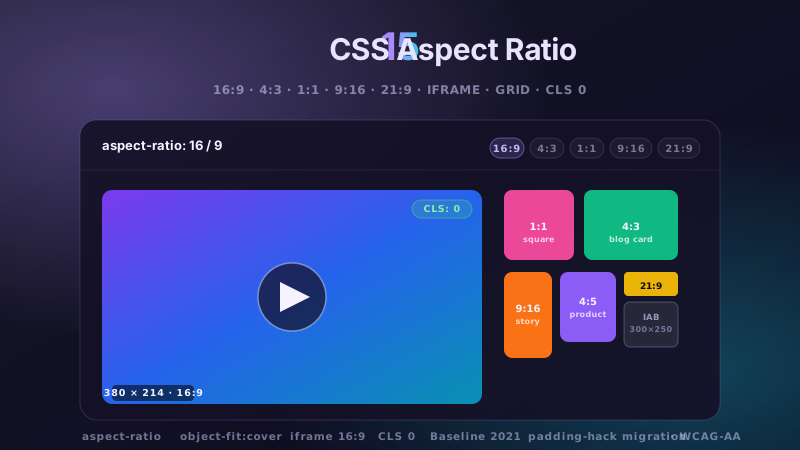
15 CSS Aspect Ratio Demos preview

15 CSS Aspect Ratio Demos

15 hand-coded CSS aspect-ratio demos for video embeds, product galleries, IAB ad slots, native dialogs, and CLS-safe placeholders: 16:9 iframe YouTube embed with click-to-load facade + up-next rail, 21:9 full-screen hero video with min-height/max-height:100svh guardrails + Ken Burns drift, 1:1 Instagram-style square grid with 2×2 feature tile, 4:3 magazine card image cover, 9:16 vertical stories rail (TikTok/Reels/Shorts pattern) with scroll-snap + segment bars, 4:5 apparel product image gallery with radio-driven state + 1:1 thumbnails, 1:1 zoom thumbnail carousel with pointer-tracked --zx/--zy magnifier, prevent-layout-shift placeholder with live PerformanceObserver CLS meter (before/after side-by-side lab), dynamic content fallback with three policies (bend/strict/auto) via :has() toggle, IAB ad banner slots (728×90 leaderboard, 300×250 medium rectangle, 300×600 half-page, 320×50 mobile) with skeletons + container-query mobile swap, responsive modal dialog sized min(92vw, 88svh×16/9, 1080px) with @starting-style animation, responsive OpenStreetMap iframe wrapper with 16:9 → 1:1 container-query narrow swap, media query orientation live HUD + resize:both container-ratio playground, object-fit logo cloud with contain/cover/fill switcher via :has(), and side-by-side padding-top hack (height:0 + padding-top:56.25%) → modern aspect-ratio migration comparison with live ratio picker. 11 truly Pure CSS + 4 with a tiny optional vanilla JS snippet (facade swap, pointer magnifier, CLS meter, native dialog). Every demo is scoped under a unique .car-NN prefix so it drops into any project without CSS collisions, ships prefers-reduced-motion guards, and is framework-agnostic (works as-is in React, Vue, Svelte, Astro, Next.js, Remix, or plain HTML).

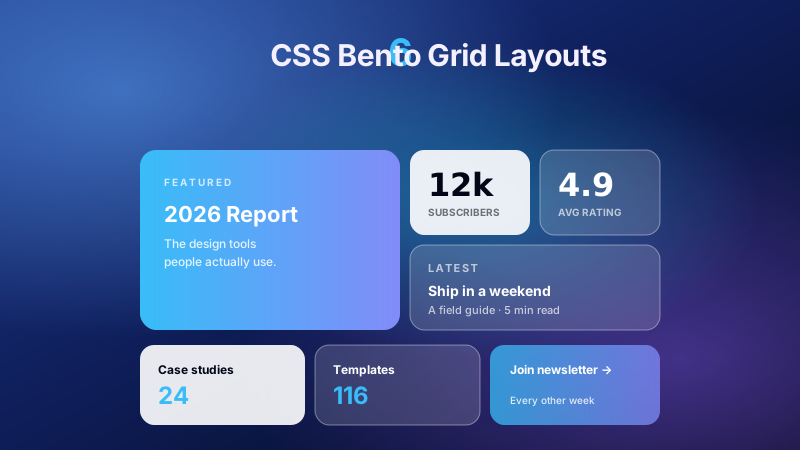
6 CSS Bento Grid Layouts preview

6 CSS Bento Grid Layouts

6 production CSS bento grid layouts with 12 hand-coded designs — Apple-style product showcase, SaaS feature value-prop matrix, analytics dashboard overview, creative portfolio, e-commerce category hub, and link-in-bio social hub. Each topic ships 2 sub-variants side-by-side so visitors see both a keynote aesthetic and a paper-doc variant at once. Container queries, CSS Grid, zero dependencies, copy-paste ready.

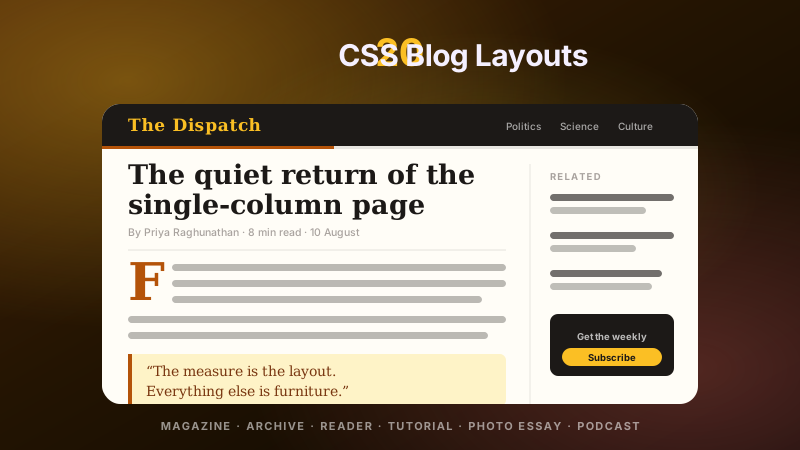
20 CSS Blog Layouts preview

20 CSS Blog Layouts

20 hand-coded CSS blog and editorial layouts for magazine homepages, news sites, personal archives, newsletter back-issues, recipe and podcast blogs, developer tutorials, and long-form journalism. Covers a magazine homepage with hero plus editor-picks rail, a news homepage with breaking-news ticker, blog archives with sticky year separators, Substack-style issue-numbered archives, recipe card grids with prep-time badges, podcast episode lists with waveforms, long-form articles with scroll-driven reading progress, drop caps and floated pull quotes via first-letter, Medium-style 65ch centred reader layouts, dev tutorials with a sticky code panel beside prose, interview transcripts with alternating speakers, case-study pages with stat counters, video blogs with an episode rail, full-bleed photo essays, news articles with sticky related-stories sidebars, documentation pages with prev/next chapter nav, a standalone blog post card, a scroll-snap category filter bar, an inline newsletter callout that breaks out of the prose column, and a horizontal featured-post rail. 12 are pure CSS with zero JavaScript. Every layout is scoped under a .bl-NN prefix for no-collision pasting, guards prefers-reduced-motion, and ports unchanged to React, Vue, Svelte, Astro, Next.js and Tailwind.

Search CodeFronts

Loading…