Building a whole Tailwind app, not just this component?
You just browsed 30 Tailwind grid layouts v2. Untitled UI Pro unlocks 5,000+ components and sections and 250+ page examples for React, styled with Tailwind CSS v4. One licence is a one-time $349 with lifetime updates; teams start at $999.
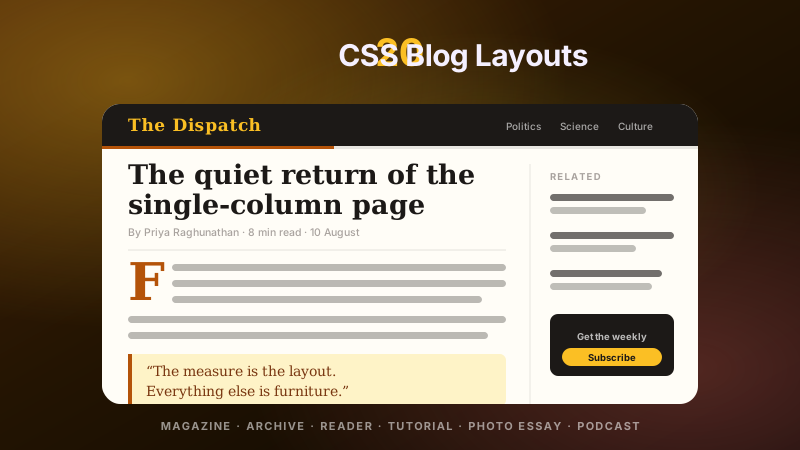
A real magazine feature — dateline, drop-in photography, a full-bleed pull quote and a reading measure that never wavers. Body copy locks to 65ch while imagery breaks the gutters, and any element opts into the bleed with one class.
A real API reference page: version pill, on-this-page rail that tracks the reader, code samples that scroll instead of shoving the layout around. One missing declaration kills position: sticky in grid — here the cure sits two utilities from the cause.
A photographer's portfolio index: mixed crops, two feature tiles, captions that surface on hover and on keyboard focus alike. Real images, real lazy loading, and not one media query.
Header, section nav, story column, trending rail, footer — the layout every publication still ships, written as an ASCII map you can read in the class list and restacked on mobile by one variant on the same element.
A service-health table from an observability console: sparkline per service, tabular figures that line up by digit, status pills that never squash, and one master track list every row inherits with [grid-template-columns:subgrid].
An agency case-study teaser where the results card overlaps the project photograph — the composition every studio site uses, built from shared grid cells instead of absolute offsets, so it scales instead of drifting.
Newsletter
Enjoying these demos? Get new ones by email.
A short email when a new collection ships. Unsubscribe any time.
A support knowledge-base article: fixed 170px category rail, the answer in the middle, a related-articles rail, and hairline rules that come from the grid's own gaps rather than five border declarations.
A landing page assembled from a real 12-column system — hero, article, sidebar, three features, split CTA — with the design-tool column overlay rendered live behind the content so you can see every span land on its tracks.
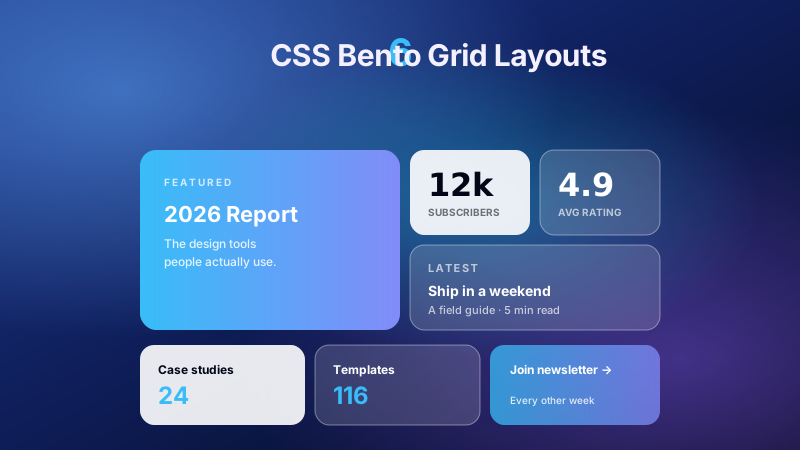
The feature section every modern product page ships: a 2×2 hero tile with real numbers, a photo tile, a metric tile and satellites — each with its own accent driven by a single inline custom property.
A print-grade travel opener: the display headline crosses the photograph, a vertical byline runs up the gutter, the standfirst sits under a hairline rule and the body copy breaks into columns with a drop cap.
An integrations marketplace: six connectors with categories, install counts and status badges, laid out by one utility that goes 4-up to 1-up as the container narrows. No breakpoints anywhere in the file.
A blog's topic index that re-designs itself by count: three topics render as feature cards with descriptions and post counts; add a fifth and the same list compacts into a chip wall. One class list, no JavaScript, no editor training.
A saved-ideas board — the Pinterest pattern — with real photography, per-pin authors and save counts. Each pin spans a number of 8px rows that your CMS computes, so the waterfall needs no library and no measuring pass.
A team page as an interlocking honeycomb: ten hexagonal portraits that nest peak-into-notch, each revealing a name and role on hover or keyboard focus. The photo is clipped by the same polygon as the cell, so the comb stays a comb.
Newsletter
Enjoying these demos? Get new ones by email.
A short email when a new collection ships. Unsubscribe any time.
A template gallery where titles run to different lengths and descriptions to different depths — yet every badge, title, body and button sits on a shared line, because each card adopts the parent's row tracks. Flexbox's mt-auto workaround retires here.
A revenue dashboard with the frame real apps need: pinned rail, toolbar with search and account, four KPIs with deltas, a chart card and an activity feed — and exactly one scroll region, so the chrome never moves.
Three plans with genuinely different feature counts, and CTAs that still land on one line. The featured plan lifts with scale-105 — a transform, so its tracks stay locked to its siblings — and prices sit in <data> with tabular figures.
A sprint board with avatars, labels, estimate chips and WIP limits. Columns are implicit — append a <section> and you have a new list — and each stack scrolls under its own pinned header.
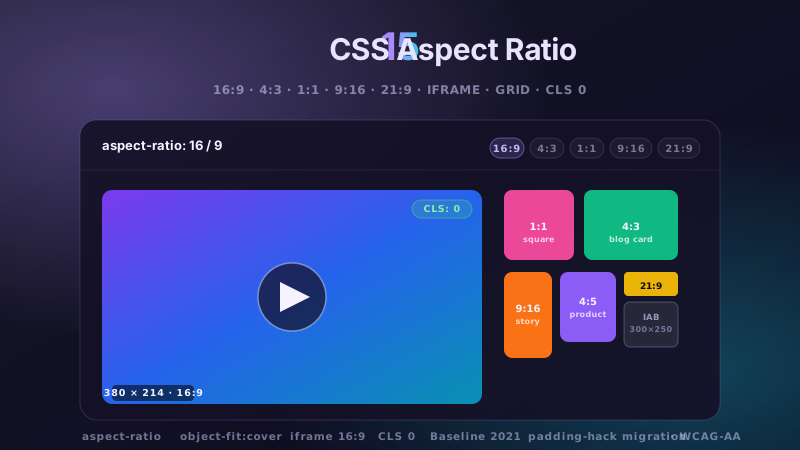
A course catalogue: 16:9 thumbnails reserved before any pixel loads, duration badges, progress bars on started lessons, and instructor lines. Tailwind ships aspect-video, so the CLS fix is one word.
One article teaser, two layouts — decided by the card's own width. Dropped in the main column it goes horizontal with a wide photo; the identical markup in the sidebar stacks. In v4 the container query is core syntax.
The angled results band every agency site ships: the section skews, its children counter-skew, and the stats grid inside never knows it is tilted. No SVG dividers, no clip-path seams that misalign at odd widths.
A conference hero built like a printed poster: a crimson slab, an offset cream panel, an outlined year bleeding off the top edge and the headline straddling both — four layers, one grid, zero absolute positioning.
Newsletter
Enjoying these demos? Get new ones by email.
A short email when a new collection ships. Unsubscribe any time.
A destination wall for a travel brand: ten photographs in a designed span sequence where every visual row sums to six columns, so the mosaic interlocks with no holes and keeps its curated order.
A brand-asset library where tiles come in three footprints and the grid refuses to leave holes. The numbers are upload order, so you can watch the algorithm pull later assets backwards — and see exactly when that trade is acceptable.
A deploy-platform setup checklist: self-numbering circles from CSS counters, a connector drawn per step so it stops cleanly at the last one, completed steps marked by a data attribute and the current step announced with aria-current.
A native-feeling desktop notes app: translucent source list with grouped folders and counts, a unified toolbar spanning both columns, and a document pane that owns the only scrollbar — vibrancy in two utilities.
A destination carousel with native physics and no library: 78% slides centred by snap-center, neighbours peeking at both edges, real photography and a price line per card. Momentum, rubber-banding and keyboard scrolling come from the browser.
A network status map for an ops console: a graticule and aurora drawn entirely with gradients, edge nodes placed on grid CELLS — [grid-area:3/9] is a coordinate you can diff in review — and latency tooltips on hover or focus.
The 'trusted by' band done properly: hairline dividers that come from a 1px gap over a coloured background, so they never double up and keep working at every column count auto-fit produces.
The final boss of grid placement: a real 18-column periodic table where hydrogen sits at 1/1, helium jumps to column 18 and the d-block gap appears because elements are PLACED, not flowed. Two explicit placements per period draw the whole silhouette.
FAQ
Frequently asked questions
How do I build a responsive card grid in Tailwind that reflows on its own, without writing a single media query?
Reach for an intrinsic track definition instead of breakpoints. The integrations directory (demo 11) and the photo gallery (demo 03) both use one arbitrary utility: grid-cols-[repeat(auto-fill,minmax(220px,1fr))]. The minmax(220px,1fr) says every column is at least 220px, and shares leftover space equally; auto-fill asks the grid to lay down as many of those tracks as the container can hold. At 1400px you get six columns, at 700px three, at 360px one — and the card content never has to know. Add gap-4 for the gutters. The one thing to get right is the min value: pick the narrowest a card can be before its text looks cramped, not the width you want on desktop. Because the tracks are computed from the container, this keeps working inside a sidebar, a modal or a dashboard cell with zero extra classes.
What is the actual difference between auto-fill and auto-fit, and why does my grid stretch its cards into giant columns?
Both create as many minmax() tracks as fit, but they treat the empty tail differently. With auto-fill the grid keeps the extra empty tracks at their minimum width, so a row of three cards stays card-sized with blank space on the right. With auto-fit those empty tracks collapse to zero and the 1fr flexible maximum lets the surviving cards absorb all the leftover width — which is exactly your giant-column bug. Two items in a wide container each balloon to half the row. The fix is to decide intent: if items should grow to fill the row, keep auto-fit; if they should stay a fixed size and leave a gap, switch to auto-fill. The gallery grids here use auto-fill so a half-empty last row reads as a grid, not two stretched banners. Nothing else in the class list changes.
How do the pricing and template cards keep their buttons on one baseline when every card has different amounts of text?
They use subgrid. Demos 15 and 17 make each card a grid item that also becomes a grid, inheriting the parent's row lines with grid-rows-subgrid and spanning the rows it needs (row-span-4 on the card). Now the title row, the description row and the button row are shared tracks across all cards, not private to each. A card with a two-line title and a card with a four-line description still place their button in the same shared final row, so every CTA lands on one baseline regardless of content length. Without subgrid you would be reaching for equal-height hacks or a fixed min-height that breaks the moment copy grows. The gotcha: the card must span the exact number of rows the parent defines, and the parent needs those rows declared (grid-rows-[auto_auto_1fr_auto]) so the 1fr soaks up the slack and pins the button down.
For the masonry and dense-packed grids, why do my items read in a jumbled order for keyboard and screen-reader users?
Because grid-auto-flow-dense (demo 24) and span-driven mosaics (demo 23) reorder the visual placement to backfill holes, but the DOM order — which is what focus and a screen reader follow — never moves. A tile that visually sits fourth may still be tenth in source, so Tab order and reading order diverge from what the eye sees. This is a genuine WCAG concern (meaningful sequence), not cosmetic. The rule the collection follows: only use dense packing when the order is not meaningful — a decorative photo wall or an asset library where any order is fine. For anything ordered (steps, a ranked list, a table), keep the natural flow and accept the occasional gap. Never use CSS order or dense packing to fake a sequence, and don't rely on it to move a call-to-action earlier — put it earlier in the markup instead.
How does the article teaser switch between a stacked and a side-by-side layout based on where I drop it, not the viewport width?
That is a container query, and it is the whole point of demo 20. The teaser's wrapper is marked @container, and the card's internal grid keys off the card's own width with container variants like @md:grid-cols-[200px_1fr]. Dropped into a wide main column the card is wider than the threshold, so it goes horizontal — image left, text right. Dropped into a narrow sidebar the same component falls back to a single stacked column, with no change to its markup or props. Media queries can't do this: they only know the browser width, so the identical card would render the same in both slots. The setup cost is two things — a parent that establishes containment (@container) and children that use the @-prefixed variants rather than sm:/md:. Reuse the teaser anywhere and it adapts to its actual space.
How is the periodic table placed so precisely — can I really put an element at an exact row and column with Tailwind?
Yes, and demo 30 is the extreme case: a real 18-column table where hydrogen sits at column 1 and helium jumps to column 18 on the same row. The parent is grid-cols-18, and each cell uses explicit line placement — col-start-1 for hydrogen, col-start-18 for helium — so the gap between them is real empty grid, not a spacer element. The status map (demo 28) does the same trick with col-start/row-start to drop coordinate pins onto a graticule. The mechanism is that CSS grid lets any item name the line it begins and ends on, independent of source order, so you place items by coordinate rather than by flow. The one caution: coordinate placement is precise but not fluid — a fixed 18-column grid needs a horizontal scroll container on narrow screens, which is why the table wraps in an overflow region rather than trying to reflow chemistry.
How do the docs and help-center layouts keep the sidebar and table-of-contents fixed while the main column scrolls?
Two different tools for two different needs. The help center (demo 07) uses genuinely fixed rails — a 170px category column that never moves — by giving the grid fixed side tracks (grid-cols-[170px_1fr_220px]) and letting only the centre track's content scroll. The docs page (demo 02) instead uses sticky top-0 (or a small offset) on the on-this-page rail, so it scrolls with the article until it reaches the top of the viewport, then pins. Sticky is usually what you want for a TOC because it releases at the end of the content instead of overlapping the footer. The classic bug: sticky silently does nothing if any ancestor has overflow-hidden or overflow-auto, because that ancestor becomes the scroll container and the element sticks to it instead of the page. Keep the sticky element's scroll ancestor clean and give it a defined top.
When should I not use CSS grid for these layouts — is there a case where flexbox or plain block is the better call?
Grid earns its keep when you control both axes at once: dashboards (demo 16), the 12-column marketing system (demo 08), coordinate placement (demos 28, 30) and any subgrid alignment. Reach for something simpler when you don't. A single row or column that just needs items to wrap and space out — a logo wall's fallback, a tag list, a button group — is cleaner as flexbox, because grid's track machinery is overhead you never use. Long-form prose (demo 01) is really one measured column; a max-width block beats a one-column grid. And a truly staggered height masonry, where items pack vertically by shortest column, still isn't grid's strength unless you accept the reading-order tradeoff above — a dedicated masonry approach or columns may serve better. The test: if you're only positioning along one axis, or fighting the grid to reorder for accessibility, you probably want flex or block instead.